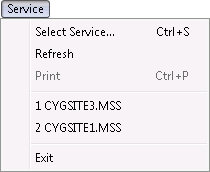
The MSS Viewer utility contains four fixed menu options on its toolbar as well as a Site.Service chooser. This utility also provides context menu options for selected tasks and blackouts. Right-click a selected task or blackout to open its context menu. If an option does not apply to the selected node nor its position in the hierarchy, it is dimmed.
The following tables list and define command options accessed using the toolbar menu and context menu.
See the following sections below for more information:
The following table lists and describes Service menu options.
| Option | Description | Toolbar Icon | Shortcut |
|---|---|---|---|
|
Select Service |
Enables you to select an appropriate MSS to which a tasks or blackout applies. You can also click the Browse button to the right of Site.Service or press Ctrl+S to select an MSS. |

|
Ctrl+S |
|
Refresh |
Enables you to refresh the view displayed. You can also click |

|
|
|
|
Enables you to print details if in Timeline view. You can also click |

|
Ctrl+P |
|
Exit |
Closes the MSS Viewer utility. |
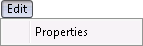
The following table lists and describes Edit menu options.
| Option | Description | Toolbar Icon | Shortcut |
|---|---|---|---|
|
Properties |
Opens the Properties dialog box appropriate to the selected task or blackout. |

|
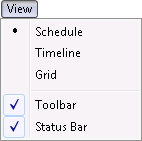
The following table lists and describes View menu options.
| Option | Description | Toolbar Icon | Shortcut |
|---|---|---|---|
|
Schedule |
Sets the MSS Viewer view to Schedule. |
||
|
Timeline |
Sets the MSS Viewer view to Timeline. |
||
|
Grid |
Sets the MSS Viewer view to Grid. |
||
|
Toolbar |
Hide or Show the toolbar. |
||
|
Status Bar |
Hide or Show the status bar. |
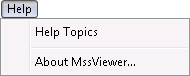
The following table lists and describes Help menu options.
| Option | Description | Toolbar Icon | Shortcut |
|---|---|---|---|
|
Help Topics |
Opens the CygNet Help. |
F1 | |
|
About MssViewer |
Displays an About MSSViewer dialog box to view application information. Available information includes the following:
In addition to information about the application, the About box includes the following buttons:
|

|

|
|
|
 to refresh the view displayed.
